 Centinel Analytica
PlatformsCMS
Drupal 7
Add Centinel Analytica to your Drupal 7 website.
Overview
This guide covers installing, configuring, and verifying Centinel Analytica in Drupal 7. You'll upload a .TAR.GZ module, enter your keys, choose what to protect (front-end, API), and create a block page.
Get your keys first
Go to the Dashboard and copy your Site Key and Secret Key.
Prerequisites
- Drupal 7
- Administrator access
- Ability to upload and configure modules
Install
Download the module (.TAR.GZ)
Download Drupal 7 Module. Keep the file compressed—don't decompress it.
Upload and activate the module
- Log in as administrator.
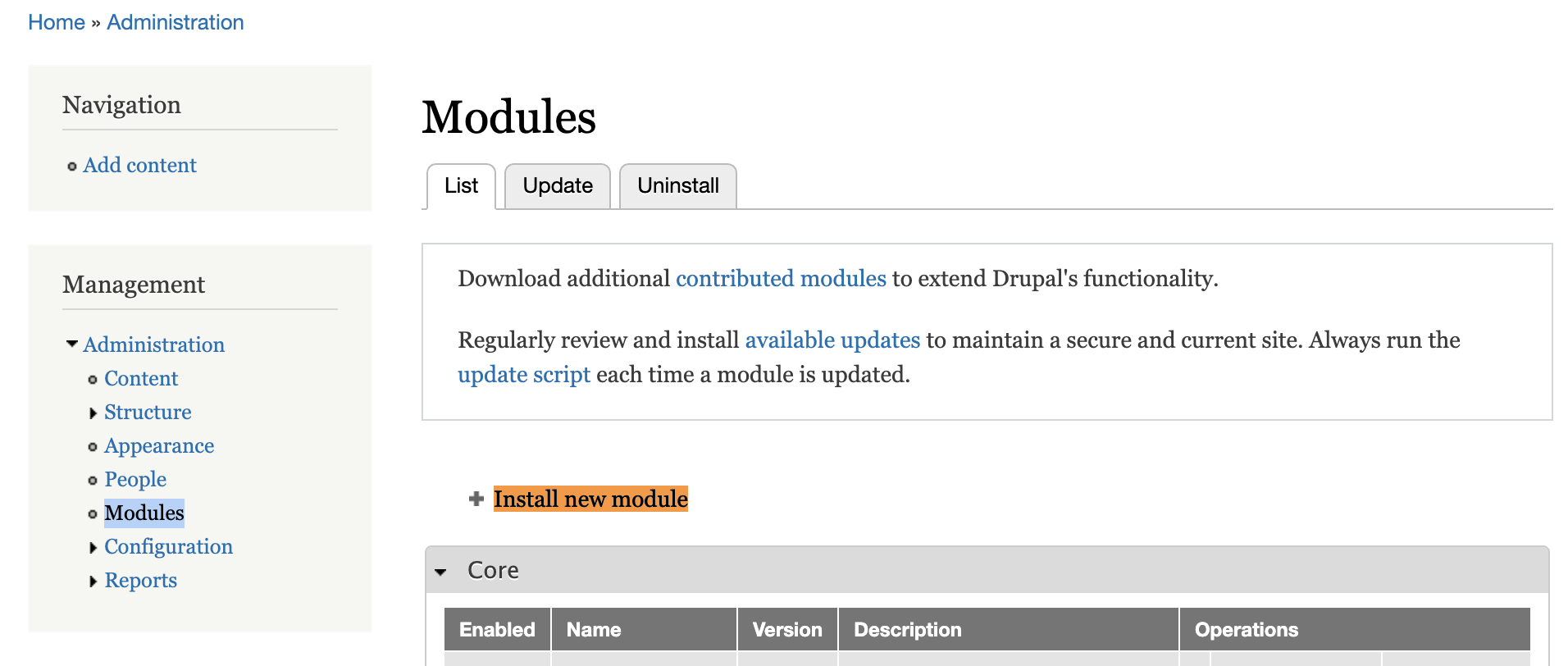
- Go to Modules in the main menu.
- Click Install new module.
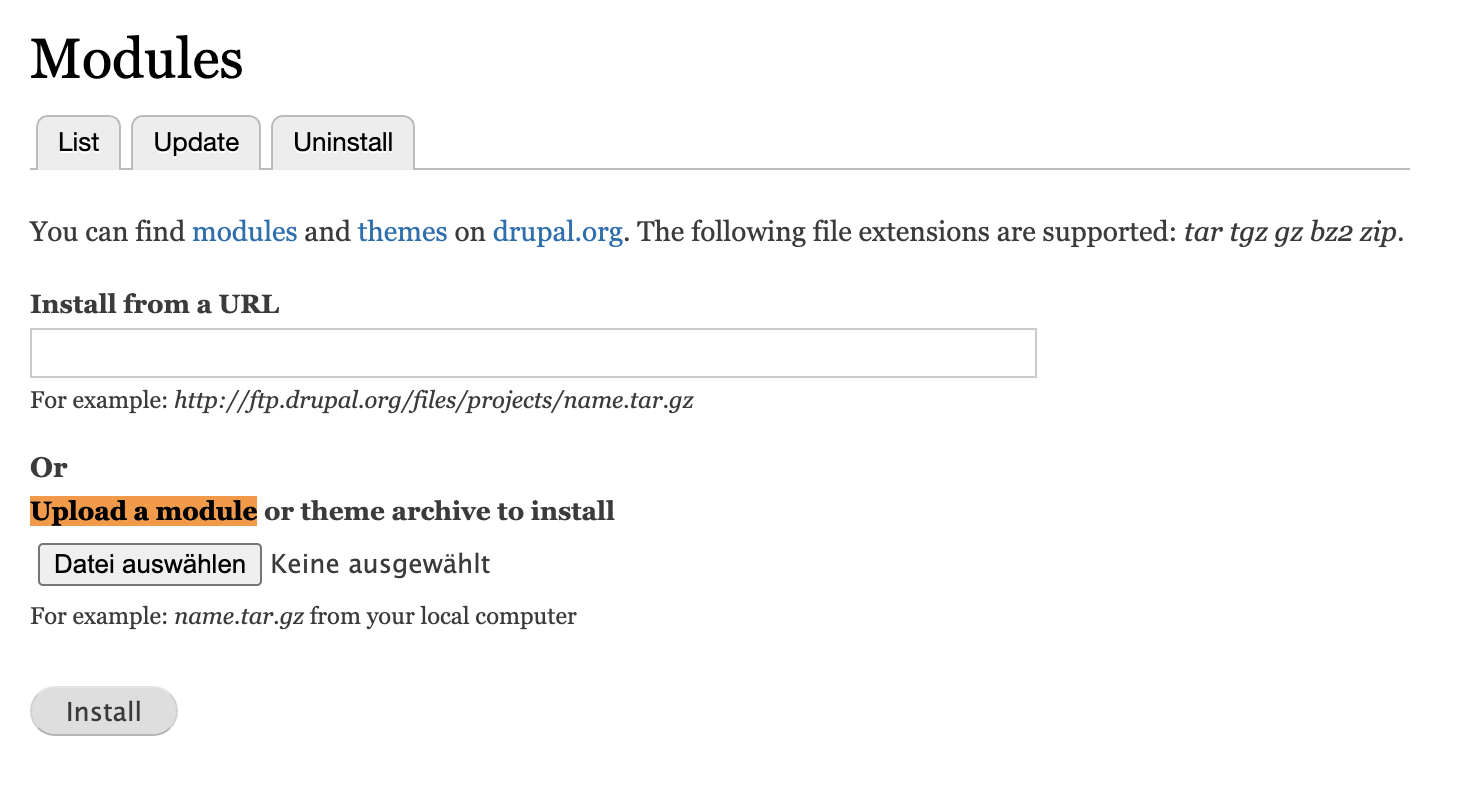
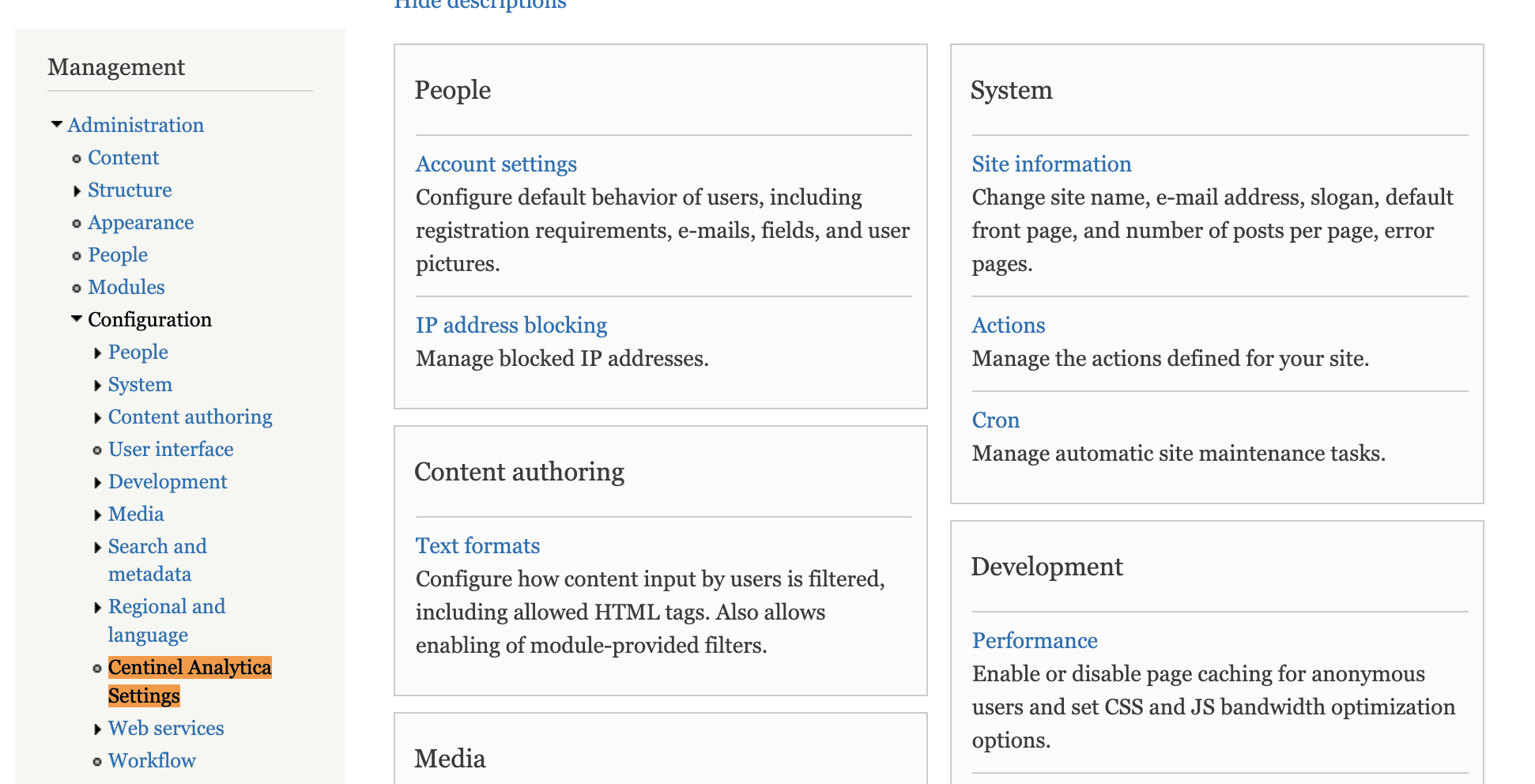
- Once installation completes, go to Configuration and select Centinel Analytica Settings.
- Enter your API keys from the Dashboard.
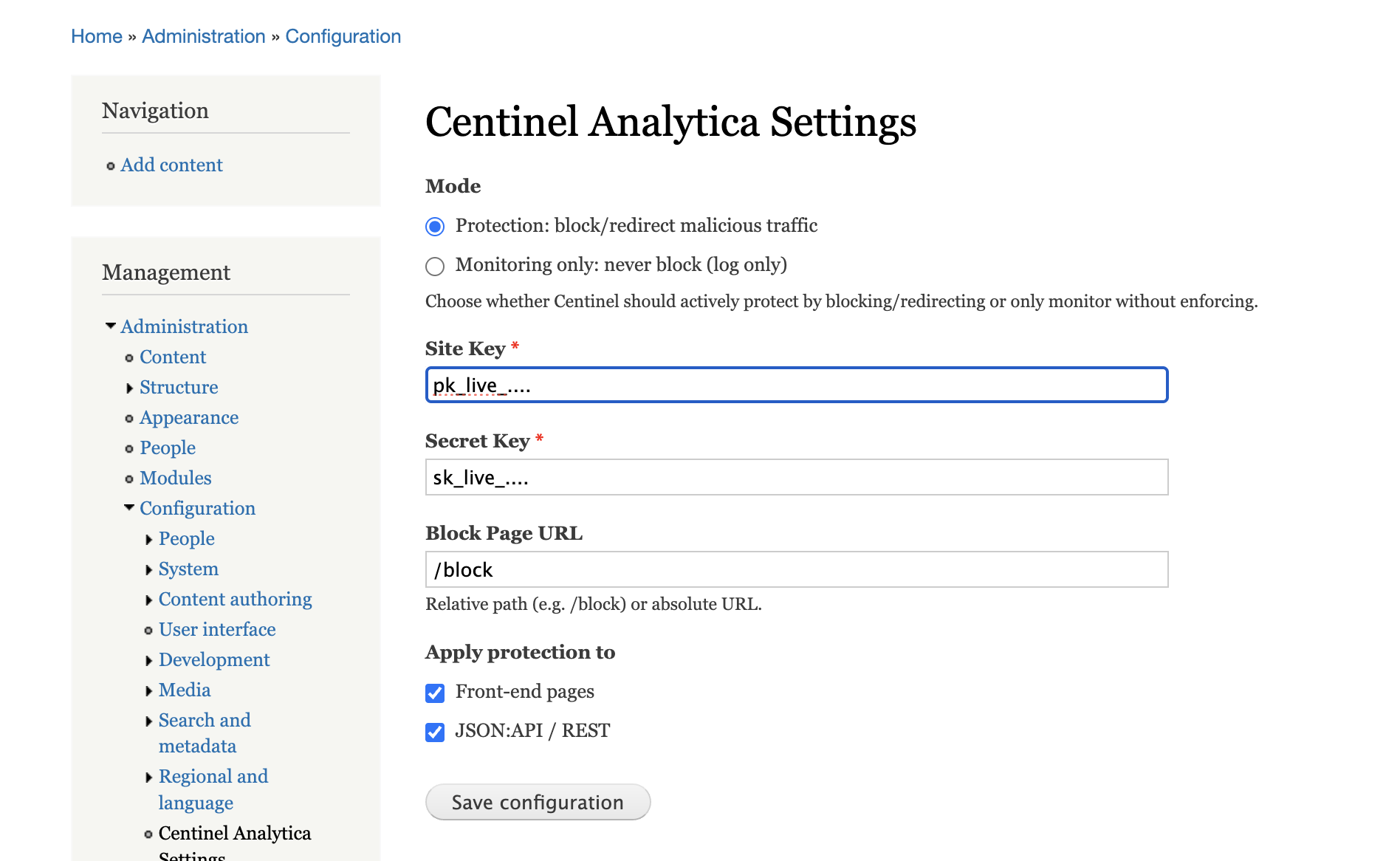
- Site Key – paste from your dashboard.
- Secret Key – paste from your dashboard.
- Block Page URL – where users go when blocked (default:
/block). - Apply protection to – check the areas to protect:
- Front-end pages – public pages.
- API – JSON API routes.
Click Save Changes.
Cache
If needed, clear the cache at https://yoursite.com/admin/config/development/performance.
Verify installation
In Centinel Analytica → Analytics you should see traffic appearing as you browse your site.
Changelog
- v1.2 — Drupal middleware improvements
- v1.1 — Exclude paths option
- v1.0 — Initial release